When a build fails
A failed package in a long build is easy to miss in a terminal. The dashboard brings it to you.
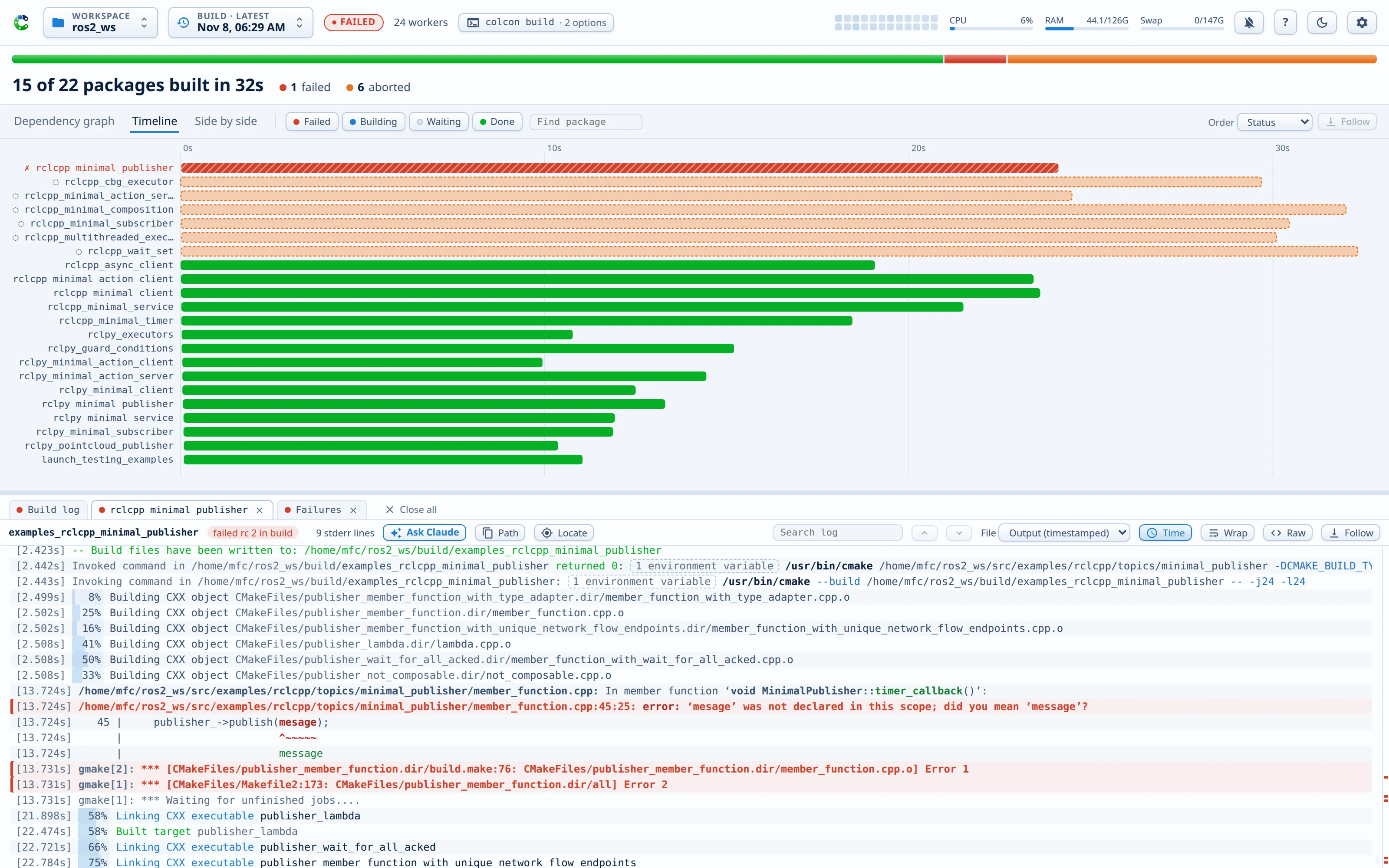
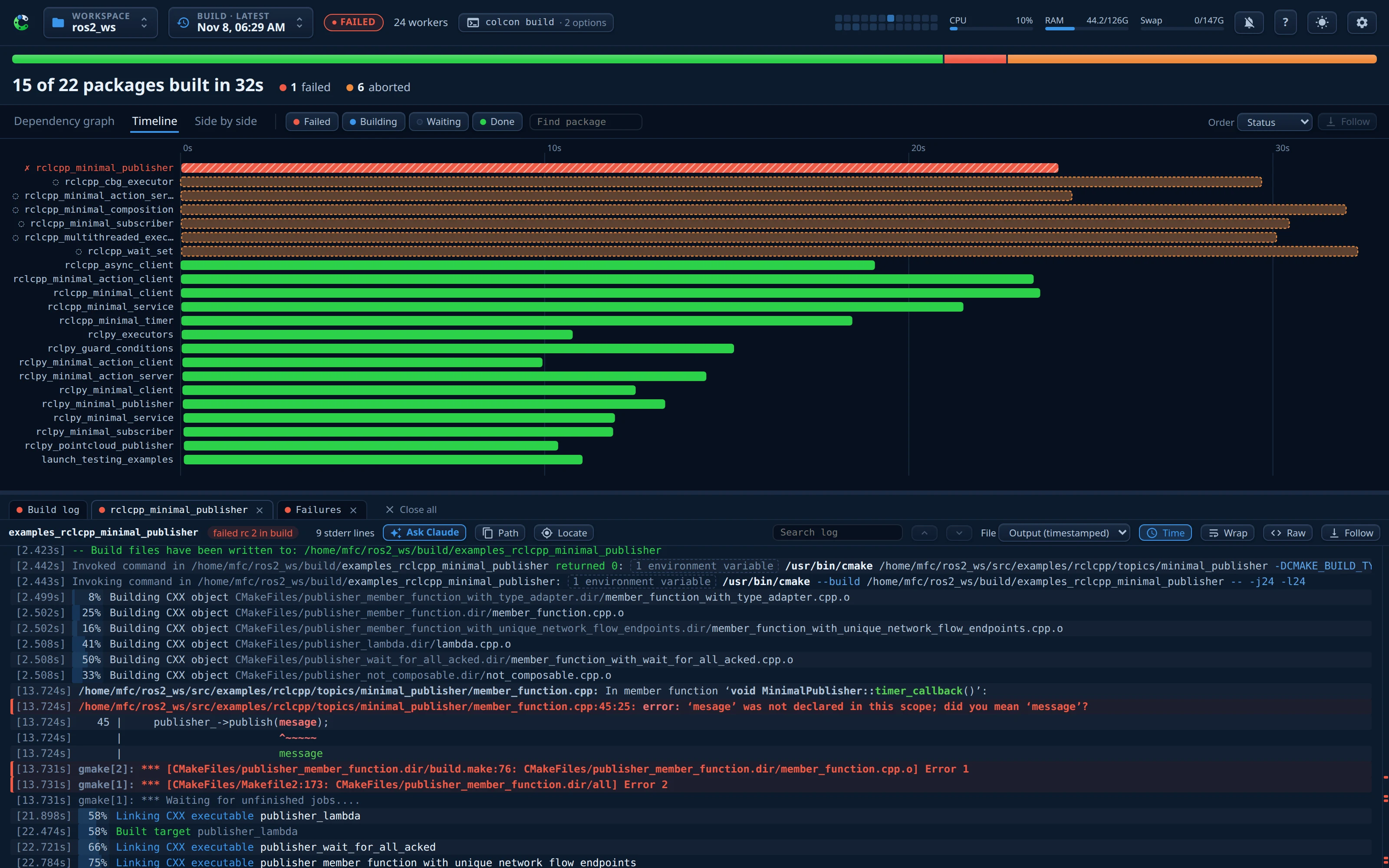
The moment a package fails
- The log pane of the package opens by itself, and a notice points to it.
- If notifications are on, you get a desktop notification for the first failed package.
- The package turns red in the graph and in the timeline. Every package that depends on it gets a red dashed border, because it can no longer build. Packages that were only stopped stay gray.
- The browser tab shows ✗.
A page that you open on a failed build also opens the logs of the failed packages, the first failure first.
The Failures tab
A Failures tab appears in the dock with the first failure. It collects every failed package of the build, in the order in which they failed. For each package, it shows the last lines of its error output, a link to the line in the log, an Open log button, and an Ask Claude button. When a failed build ends, this tab comes to the front.
A package that did not fail in the last run shows new. A package that failed in the last run too shows how many runs in a row it failed, for example failing for 3 runs. Its tooltip gives the date of the first failed run and of the last pass. A run without the package, for example one with --packages-select, does not end the count.


Failed tests
A colcon test run reads the JUnit files of each package. These are the files that colcon test-result reads.
- The Failures tab lists the failed tests of each package, with the first line of each message. A click on a test name opens its whole failure.
- The Test results button, and the Test results (JUnit) choice in the selector of a package pane, open the report of the package. The report gives the counts, each failed test with its full text and captured output, and every test with its time, the slowest first.
- The hover card of a package in the graph shows its test count and its test time.
The JUnit files keep only the last test run of each package. If you open an older test run in the build picker, its report shows the newer results.
Find the error in the log
- Errors have a red bar and a red tint. The red marks beside the scrollbar show where they are. Click a mark to jump to it.
- A compiler error shows the file position underlined. With an editor link, a click opens the file at that line in your editor.
- Click Failed above the graph to see every package that the failure blocks.
Ask Claude
If the claude CLI is installed, the log of a failed package has an Ask Claude button. Claude reads the error and the code of your workspace, and it explains the cause. See Ask Claude.
Build again
Fix the error and run colcon build again. The page switches to the new build by itself. To build only what failed, use colcon's own option:
The build picker keeps the failed build, so you can compare the two.